Microsoft SwiftKey AI Keyboard
- 4.3
- Rating
- 1.00B
- Installs
- Free
- Price
 Analysis by App-foxy
I notice a keyboard most when it gets in my way, so I spent time using Microsoft SwiftKey AI Keyboard in the situations where small typing problems become genuinely annoying: quick replies, longer notes, searches, multilingual messages, and casual conversations filled with emojis. My overall impression is that this is a remarkably flexible personalization app rather than just a replacement for the keyboard already installed on a phone. It can adapt to how I write, change the visual feel of the typing area, and put GIFs, stickers, and writing assistance close to where I need them.
That flexibility is also the reason I would not recommend it blindly. A keyboard sits between you and almost everything you type, so even minor delays, unexpected corrections, or an interface that feels too busy can become frustrating. SwiftKey is strongest when you want control and customization; it is less convincing if you prefer a very plain keyboard that quietly does its job without asking you to explore extra tools.
How the keyboard feels today
Microsoft SwiftKey AI Keyboard is a free personalization app developed by SwiftKey, and its current version is 9.12.23.9. It supports devices running Android 8.0 or later, carries an Everyone content rating, and has been available since September 22, 2010. Those details matter because this is a mature product, not a newly released experiment. The large install base and long history suggest that its main appeal is not one flashy feature, but the way several practical tools work together in daily typing.
In-Depth Coverage of Microsoft SwiftKey AI Keyboard
The first thing I would do after installing it is spend a few minutes adjusting the layout rather than immediately judging the default arrangement. The keyboard gives personalization a central role: themes can change the appearance, while the toolbar brings visual and conversational extras within reach. I found that this makes the experience feel more personal than a basic keyboard, especially when I use a theme that improves contrast and makes the keys easier to distinguish in different lighting.
The visual options are not merely decoration. A keyboard is used repeatedly throughout the day, and the spacing, contrast, and overall density affect how confident I feel when typing quickly. A colorful theme may be fun for a while, but a calmer design is usually better for work messages or long writing sessions. I recommend choosing a theme for readability first and style second. That small decision reduces the feeling that the keyboard is competing with the text itself.
SwiftKey also makes sense for people who communicate visually. GIFs, stickers, and emoji access are integrated into the typing experience instead of requiring me to leave the conversation and search elsewhere. I would not use those tools in every message, but they are convenient when a short reaction says more naturally than a sentence. The trade-off is that the toolbar can make the keyboard feel more crowded than a minimalist alternative.
Typing assistance that improves with routine
The most useful part of a personalized keyboard is not the theme; it is the reduction of repeated effort. SwiftKey is designed to learn from the way I type, which can make suggestions more relevant over time. In practice, that is most valuable for recurring names, informal expressions, and the shorthand I use with friends. A keyboard that understands those habits can save several taps in a conversation, even when the individual savings seem tiny.
I would still treat suggestions as suggestions, not automatic truth. Unusual names, mixed-language sentences, technical terms, and deliberately playful spelling can all confuse predictive text. My preferred workflow is to glance at the suggestion row before tapping it, particularly in professional messages. That habit keeps the speed advantage while avoiding the awkward corrections that happen when an intelligent keyboard becomes too confident.
Another practical detail is the difference between correcting a typo and changing my voice. Aggressive autocorrection can make a message look polished while quietly removing the way I intended to sound. SwiftKey is more enjoyable when I give it time to learn my normal wording and remain willing to undo a correction when it misses. For someone who writes in a very formal style, the suggestions may feel helpful quickly. For someone who uses slang, dialect, or several languages in one sentence, the adjustment period can be more noticeable.
Using Copilot without turning every message into a project
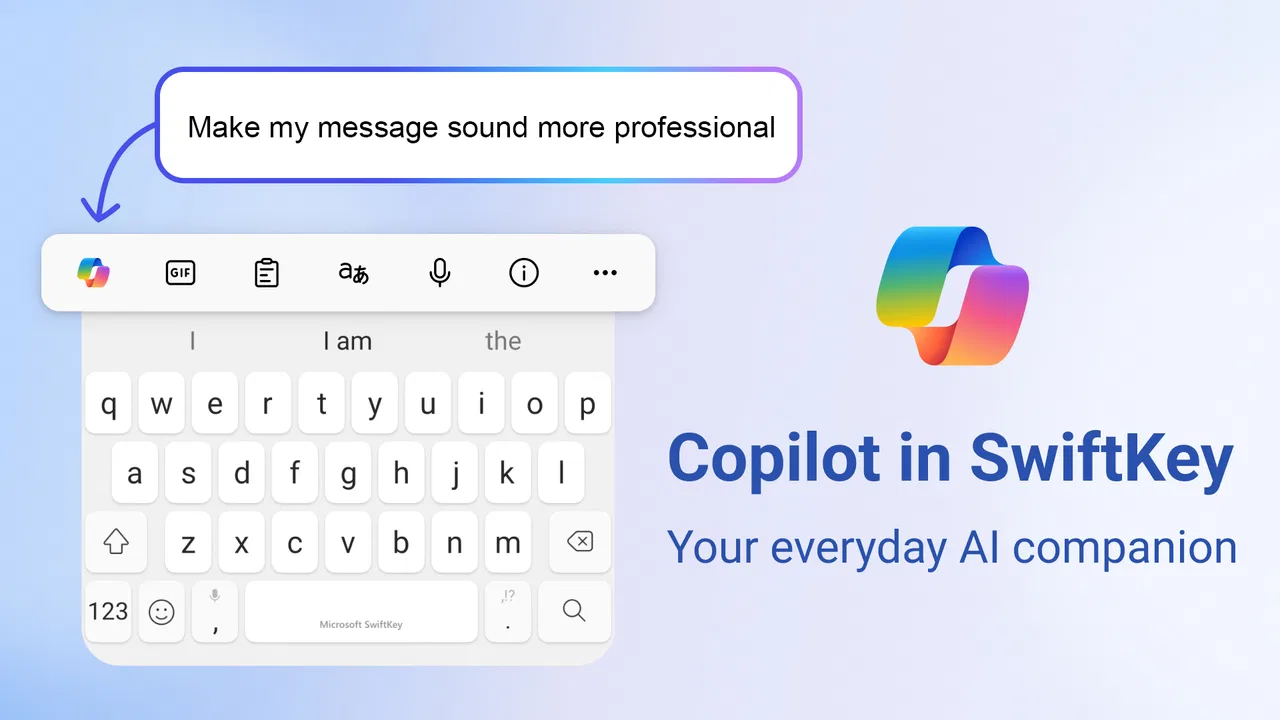
The AI-powered Copilot is the feature that gives the current app a different identity from a conventional keyboard. I see it as an optional writing companion rather than something that should control every sentence. It can be useful when I need to rephrase a message, find a different tone, or get help turning a rough thought into something clearer. That is especially handy when I know what I mean but cannot find the right wording.
The best everyday use is small and specific. If I have written a blunt reminder to a colleague, I can use an assistance tool to make the wording friendlier before sending it. If I am replying in a language I do not use confidently, a suggested formulation can give me a starting point. I would not hand over an entire personal conversation to an AI tool without reading the result carefully, though. The final responsibility remains mine, because a grammatically smooth sentence can still sound unnatural or communicate the wrong emphasis.
You May Also Like

 AccuWeather: Weather Radar
AccuWeather Review: A Quick, Clear Forecast for Everyday Decisions
For everyday plans, the best forecast is the one you can understand quickly. AccuWeather makes rain timing, radar, and local conditions easy to act on, with a few trade-offs.

 Hill Climb Racing
Why Hill Climb Racing Still Turns Crashes Into One More Run
A tiny car, a bumpy hill and one more upgrade: Hill Climb Racing keeps resurfacing because its simple chaos makes every near-miss feel personal.

 AliExpress - Shopping App
AliExpress Makes Global Shopping Feel Personal, but Shoppers Bear the Risk
AliExpress turns a global marketplace into a pocket-sized discovery engine. Its reach is useful, its shopping loop compelling, and its trade-offs easy to miss.

 Lords Mobile: Kingdom Wars
Lords Mobile Is a Kingdom-Building Routine, Not a Quick Match
A case-by-case verdict on the building, battles, device demands, and social commitments that make Lords Mobile rewarding for some players and exhausting for others.

 PDF Scanner app - TapScanner
TapScanner Makes Paperwork Easier to Capture, Check, and Share
TapScanner makes scanning with a phone feel less like a rescue operation and more like a dependable step in getting work done. Its capture tools are useful, though not flawless.

 Block Blast!
Block Blast! Shows How Much a Puzzle Game Can Leave Out
A quiet grid game shows why puzzle players increasingly value instant clarity, repeatable skill and low-pressure play—and where the genre still needs to catch up.
More From Our News Desk
View All News


This is also where I think the app benefits from restraint. Copilot is valuable when it removes a particular obstacle, such as tone or phrasing. It is less useful when I open it simply because it is available and end up spending more time refining a short message than I would have spent typing it myself. The keyboard should speed up communication, not turn every text into an editing session.
What changed for long-time users
For someone who has used SwiftKey for years, the current experience feels like an expansion of the original keyboard idea. The foundation remains familiar: a personalized typing surface with predictive assistance and visual customization. Around that foundation, the emphasis has moved toward quick access to expressive content and AI-supported writing. That evolution makes sense because people now use keyboards for much more than plain text, but it also creates a busier product.
Existing users who mainly care about fast typing may not feel a dramatic benefit from every newer tool. If your current setup already predicts your words accurately and you rarely use GIFs, stickers, or writing assistance, the upgrade in day-to-day value may be modest. On the other hand, users who regularly switch between casual conversation and more polished writing have more reason to explore the newer direction.
I would approach the transition gradually. First, settle the key layout and theme. Next, test suggestions in low-risk conversations. Then try Copilot on drafts rather than messages that need to be sent immediately. This order makes it easier to tell whether a problem comes from the keyboard’s basic feel or from an optional feature. It also prevents the common mistake of changing several settings at once and then not knowing which adjustment helped.
The app’s scale is notable: it has passed one billion installs and holds a 4.4 average from around 4.5 million ratings, alongside roughly 224 thousand written reviews. I do not treat popularity as proof that every person will enjoy it, but it does explain why the product feels broadly developed rather than narrowly targeted. There is a large audience for a keyboard that combines personalization, expressive content, and writing assistance in one place.
Where it fits among familiar alternatives
Compared with a basic system keyboard, SwiftKey offers a more deliberate personalization layer. The difference is obvious if you care about themes, GIFs, stickers, or a keyboard that adapts to your wording. A default keyboard may feel cleaner and require less setup, but it can also leave you with fewer ways to shape the experience around your habits.
Compared with other feature-rich keyboard apps, the decision is less simple. SwiftKey’s appeal is the combination of customization and Copilot rather than one isolated function. Someone who wants the most minimal interface may prefer the keyboard already supplied with a phone. Someone who prioritizes a particular privacy philosophy, a specialized language workflow, or a very specific layout should compare those priorities carefully before switching. I would choose SwiftKey for breadth, not because it is automatically the best tool for every typing style.
There is also a social difference. Some people enjoy having reactions, stickers, and GIF search close to the text field; others find those buttons distracting. If you mostly write documents, code, formal emails, or long notes, the visual extras may contribute little. If you spend much of the day in messaging apps, they become more relevant. The right choice depends less on the phone you own and more on what you type repeatedly.
Small workflows that make a real difference
One useful workflow is to create a personal separation between fast replies and careful writing. For quick messages, I rely on the keyboard’s learned suggestions and keep the toolbar nearby for an occasional sticker or GIF. For a longer note, I reduce distractions by choosing a readable theme and treating suggestions as an editing aid rather than accepting the first option automatically. This keeps the same keyboard useful in two very different contexts.
A second workflow is to use Copilot before, not after, emotional communication. When I am annoyed, my first draft often sounds harsher than intended. Asking for a softer version can help me notice the difference between the point I need to make and the irritation surrounding it. I still rewrite the result in my own voice, but the tool gives me a useful pause before I press send.
A third is particularly helpful for people who alternate between personal and work language. I keep an eye on the suggestion row when moving from informal chats to professional messages, because the keyboard may carry habits from one context into another. Reviewing the suggested words before accepting them is a simple way to avoid slang, overly casual phrasing, or an unintended correction in a serious message.
For multilingual users, the important question is not whether the keyboard can make every mixed-language sentence perfect. The practical benefit is smoother switching and better support for the vocabulary I actually use, while the limitation is that blended sentences still deserve a quick read. Names, borrowed words, and expressions that belong to one language but appear inside another can remain difficult for any predictive system.
Friction I would want you to know about
The biggest weakness is complexity. SwiftKey gives me many things to explore, but a keyboard is not an app I want to configure every day. The toolbar, visual choices, suggestions, and AI functions can feel like several products sharing the same space. New users may need patience to discover which tools are genuinely useful and which can remain ignored.
There is also a mental cost to intelligent correction. The more a keyboard tries to anticipate my next word, the more important it becomes to watch what it is doing. That is not a reason to reject SwiftKey, but it changes the way I use it. I get the best results when I read the complete sentence before sending, especially after using a suggestion or an AI rewrite.
I would skip this app if I want a completely bare typing surface, if I dislike predictive assistance, or if I never use personalization. I would also hesitate if my main requirement is a niche workflow that depends on a very particular layout or specialized text entry method. In those cases, a simpler or more focused alternative may feel better even if it has fewer extras.
For everyone else, the price is an easy reason to experiment: SwiftKey is free, and its Everyone age rating makes it approachable for a broad audience. I would still recommend treating installation as the beginning of a short trial rather than a permanent commitment. Type the messages you normally type, test the correction behavior, and see whether the toolbar helps or interrupts you. A keyboard has to fit muscle memory, and no written feature list can answer that as well as several ordinary conversations.
What I would watch as the product evolves
The current version shows a clear direction: the keyboard is becoming a place where typing, expression, and AI assistance meet. I would like that evolution to preserve the qualities that made a keyboard dependable in the first place: quick response, predictable corrections, and settings that are easy to understand. New tools are worthwhile only when they remain optional and do not make ordinary typing feel like a complicated workflow.
I would also pay attention to how well the balance between personalization and simplicity holds up. The strongest future for this app is not necessarily adding more buttons. It is making the existing tools easier to reach when needed and easier to ignore when they are not. Copilot should remain useful for a specific writing problem, while the core keyboard should continue to feel comfortable for a message that takes only a few seconds.
My final view is favorable, with a clear condition: I recommend Microsoft SwiftKey AI Keyboard to people who want their keyboard to feel personal and who will make practical use of suggestions, themes, visual content, or Copilot. It is especially good for someone who moves between quick chats and more thoughtful writing during the same day. I would point a minimalist or highly specialized typist elsewhere, but for a broad, flexible Android keyboard experience, SwiftKey remains a strong choice because it gives me useful options without charging for the basic app.
FAQs for Microsoft SwiftKey AI Keyboard
01What is Microsoft SwiftKey AI Keyboard and how does it enhance typing?
Microsoft SwiftKey AI Keyboard is a smart keyboard app that uses artificial intelligence to predict and auto-correct your typing. It learns from your writing habits to provide more accurate suggestions and emojis. It supports multiple languages and offers a range of customizable themes, making typing faster and more personalized.
02Is Microsoft SwiftKey AI Keyboard free to use?
Yes, Microsoft SwiftKey AI Keyboard is free to download and use. However, it may offer in-app purchases for premium features and themes. These purchases are optional, and the app provides a comprehensive set of features in its free version, making it accessible to all users.
03What languages does Microsoft SwiftKey AI Keyboard support?
Microsoft SwiftKey AI Keyboard supports over 400 languages, allowing users to switch between them seamlessly. The app's multilingual typing feature enables you to type in up to five languages without changing settings, making it ideal for bilingual or multilingual users who need to communicate in different languages.
04How does Microsoft SwiftKey AI Keyboard ensure user privacy and data security?
Microsoft SwiftKey AI Keyboard prioritizes user privacy by not storing, accessing, or sharing your personal data without consent. It uses cloud-based learning to improve predictions while keeping your data secure. Users can manage their privacy settings and opt-out of cloud personalization if they prefer local data processing.
05Can Microsoft SwiftKey AI Keyboard be customized for individual preferences?
Yes, Microsoft SwiftKey AI Keyboard offers extensive customization options. Users can choose from a variety of themes, adjust keyboard size, and enable or disable specific features like auto-correct, key sounds, and more. This flexibility allows users to tailor the keyboard to their personal typing style and preferences.
Pros
- Highly accurate predictive text.
- Customizable themes and layouts.
- Supports numerous languages.
- Easy-to-use swipe typing.
- Seamless cloud syncing.
Cons
- Occasional lag on older devices.
- Limited customization for themes.
- Can drain battery quickly.
- Some features require internet.
- Ads in the free version.

Microsoft SwiftKey AI Keyboard
Gallery